La comanda per veure els valors actuals de connexió a la corrent és:
gsettings get com.deepin.dde.power line-power-screen-black-delay && gsettings get com.deepin.dde.power line-power-sleep-delay && gsettings get com.deepin.dde.power line-power-lock-delay
Configuració Valor actual Temps actual line-power-screen-black-delay 900 –> 60×15 -> 15 minuts line-power-sleep-delay 1800 30 minuts line-power-lock-delay 900 15 minuts
Ara executa aquests 3 comandaments per canviar-ho tot a 2 hores:
gsettings set com.deepin.dde.power line-power-screen-black-delay 7200
gsettings set com.deepin.dde.power line-power-sleep-delay 7200
gsettings set com.deepin.dde.power line-power-lock-delay 7200
si vols que no s’apagui mai (connectat a la corrent):
gsettings set com.deepin.dde.power line-power-screen-black-delay 0
gsettings set com.deepin.dde.power line-power-sleep-delay 0
gsettings set com.deepin.dde.power line-power-lock-delay 0
1. Desactiva l’estalvi de pantalla i l’apagat del monitor (X11)
xset s off xset -dpms
2. Bloqueja la suspensió del sistema i el bloqueig per inactivitat durant 24 hores
systemd-inhibit –what=idle:sleep:handle-lid-switch –who=»Backup» –why=»Còpia de seguretat en curs» sleep 86400
Perfecte. Et deixo un procediment complet per a Deepin:
Eliminar totes les restes de Firefox
Tornar a instal·lar Firefox 153 en català (ca)
⚠️ Això elimina el perfil de Firefox: adreces, historial, contrasenyes, extensions, etc. Si vols conservar el perfil, fes primer la còpia opcional del pas 1.
ls -ld /opt/firefox
ls -l /usr/local/bin/firefox
ls -l /usr/share/applications/firefox.desktop
I per comprovar la versió:
firefox --version
o:
/opt/firefox/firefox --version
Nota important
Aquesta instal·lació amb .tar.bz2 és manual. Si vols actualitzacions automàtiques, és millor usar el repositori oficial de Mozilla, però llavors potser no quedarà fixada exactament la versió 153 si Mozilla ja ha publicat una versió més nova.
I tant! Afegim l’opció E) Imatge del sistema que ho copia tot (arrel / sencera, exclòs només els sistemes virtuals com /proc, /sys, /dev…). Necessita sudo, perquè hi ha fitxers de sistema que l’usuari normal no pot llegir.
Aquí tens l’script actualitzat sencer:
#!/bin/bash
#====================================================#
#  BACKUP_MUT.SH - Còpia de seguretat i restauració  #
#  Compatible amb Deepin / Ubuntu / Debian           #
#====================================================#

USUARI="$USER"
CASA="$HOME"
DATA="$(date +%Y-%m-%d_%H%M%S)"
CARPETA_BACKUPS="$CASA/Backups"

capcalera() {
    clear
    echo "=========================================="
    echo "  BACKUP_MUT - BACKUP I RESTAURACIÓ"
    echo "=========================================="
    echo
}

tria_origen() {
    echo "Tria el directori ORIGEN:"
    echo "  A) $CASA (tot el directori d'usuari)"
    echo "  B) $CASA/Documents"
    echo "  C) $CASA/Pictures"
    echo "  D) $CASA/Downloads"
    echo "  E) Imatge del sistema (ho copia tot)"
    echo "  S) Firefox i sistema"
    echo "  R) Especificar ruta manualment"
    echo
    read -p "Opció [A/B/C/D/E/S/R]: " o
    case "$o" in
        a|A) ORIGEN="$CASA" ;;
        b|B) ORIGEN="$CASA/Documents" ;;
        c|C) ORIGEN="$CASA/Pictures" ;;
        d|D) ORIGEN="$CASA/Downloads" ;;
        e|E) ORIGEN="__IMATGE__" ;;
        s|S) ORIGEN="__SISTEMA__" ;;
        r|R) read -p "Introdueix la ruta completa del directori: " ORIGEN ;;
        *)   ORIGEN="" ;;
    esac
}

tria_desti() {
    echo
    echo "Tria el DESTÍ de la còpia:"
    echo "  1) $CARPETA_BACKUPS (disc intern)"
    echo "  2) Unitat externa / USB (/media/$USUARI)"
    echo "  3) Especificar ruta manualment"
    read -p "Opció [1-3]: " d
    case "$d" in
        2) echo "   Unitats detectades: $(ls /media/$USUARI 2>/dev/null)"
           read -p "   Nom de la unitat: " disc
           DESTI="/media/$USUARI/$disc/Backups" ;;
        3) read -p "Ruta completa de destí: " DESTI ;;
        *) DESTI="$CARPETA_BACKUPS" ;;
    esac
    mkdir -p "$DESTI" 2>/dev/null
}

fer_backup() {
    echo "--- MODE BACKUP ---"
    echo
    tria_origen

    if [ -z "$ORIGEN" ]; then
        echo "Opció no vàlida."
        return 1
    fi

    tria_desti

    if [ "$ORIGEN" = "__IMATGE__" ]; then
        echo
        echo "ATENCIO: Es copiarà TOT el sistema (excepte /proc, /sys,"
        echo "/dev, /run, /media, /mnt i /tmp)."
        echo "Calen permisos d'administrador (sudo) i pot trigar força."
        echo "Comprova que el destí tingui prou espai lliure!"
        echo
        read -p "Vols continuar? [s/N]: " conf
        if [ "$conf" != "s" ] && [ "$conf" != "S" ]; then
            echo "Operació cancel·lada."
            return 1
        fi
        if ! sudo -v; then
            echo "Error: no s'han obtingut permisos d'administrador."
            return 1
        fi
        FITXER="$DESTI/imatge_sistema_$DATA.tar.gz"
        sudo tar -czpf "$FITXER" \
            --directory=/ \
            --exclude=./proc \
            --exclude=./sys \
            --exclude=./dev \
            --exclude=./run \
            --exclude=./media \
            --exclude=./mnt \
            --exclude=./tmp \
            --exclude=./lost+found \
            --exclude=".${DESTI}" \
            .
    elif [ "$ORIGEN" = "__SISTEMA__" ]; then
        # Perfil de Firefox (deb o Flatpak) + llista de paquets instal·lats
        FF="$CASA/.mozilla/firefox"
        [ -d "$FF" ] || FF="$CASA/.var/app/org.mozilla.firefox/.mozilla/firefox"
        LLISTA="/tmp/llista_paquets_$DATA.txt"
        dpkg --get-selections > "$LLISTA" 2>/dev/null   # Deepin = Debian
        FITXER="$DESTI/backup_firefox_sistema_$DATA.tar.gz"
        tar -czf "$FITXER" "$FF" "$LLISTA"
    else
        if [ ! -e "$ORIGEN" ]; then
            echo "Error: '$ORIGEN' no existeix."
            return 1
        fi
        NOM="$(basename "$ORIGEN")"
        FITXER="$DESTI/backup_${NOM}_$DATA.tar.gz"
        tar -czf "$FITXER" -C "$(dirname "$ORIGEN")" "$NOM" \
            --exclude="Backups" \
            --exclude=".cache" \
            --exclude=".local/share/Trash"
    fi

    if [ $? -eq 0 ]; then
        echo
        echo "Còpia de seguretat creada correctament:"
        echo "  $FITXER ($(du -h "$FITXER" | cut -f1))"
    else
        echo "Error: no s'ha pogut crear la còpia."
    fi
}

restaurar() {
    echo "--- MODE RESTAURACIÓ ---"
    echo
    echo "On vols buscar les còpies?"
    echo "  1) $CARPETA_BACKUPS (disc intern)"
    echo "  2) Especificar carpeta manualment"
    read -p "Opció [1-2]: " o
    CARPETA="$CARPETA_BACKUPS"
    [ "$o" = "2" ] && read -p "Carpeta: " CARPETA

    echo
    echo "Còpies disponibles:"
    ls -1 "$CARPETA"/*.tar.gz 2>/dev/null | cat -n
    echo
    read -p "Número de la còpia a restaurar: " num
    FITXER="$(ls -1 "$CARPETA"/*.tar.gz 2>/dev/null | sed -n "${num}p")"

    if [ ! -f "$FITXER" ]; then
        echo "Error: no s'ha trobat la còpia."
        return 1
    fi

    # Cas especial: imatge completa del sistema
    case "$(basename "$FITXER")" in
        imatge_sistema*)
            echo
            echo "ATENCIO: Es sobreescriuran els fitxers del sistema actual."
            echo "Recomanat fer-ho des d'un Live USB."
            read -p "Vols continuar? [s/N]: " conf
            if [ "$conf" = "s" ] || [ "$conf" = "S" ]; then
                sudo tar -xzpf "$FITXER" -C / && echo "Imatge del sistema restaurada."
            else
                echo "Operació cancel·lada."
            fi
            return 0
            ;;
    esac

    read -p "On vols restaurar-ho? [$CASA]: " DEST
    [ -z "$DEST" ] && DEST="$CASA"
    mkdir -p "$DEST"

    if tar -xzf "$FITXER" -C "$DEST"; then
        echo "Restauració completada a: $DEST"
        echo "(Els fitxers queden dins la seva subcarpeta original)"
    else
        echo "Error durant la restauració."
    fi
}

#==================== PROGRAMA PRINCIPAL ====================
while true; do
    capcalera
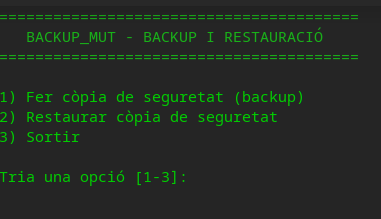
    echo "1) Fer còpia de seguretat (backup)"
    echo "2) Restaurar còpia de seguretat"
    echo "3) Sortir"
    echo
    read -p "Tria una opció [1-3]: " op

    case "$op" in
        1) fer_backup ;;
        2) restaurar ;;
        3) echo "Adéu!"; exit 0 ;;
        *) echo "Opció no vàlida" ;;
    esac

    echo
    read -p "Prem ENTER per continuar..."
done
Per actualitzar el teu fitxer:
nano ~/.local/bin/backup_mut.sh
# (enganxa el codi nou, Ctrl+O per desar, Ctrl+X per sortir)
backup_mut.sh
Notes sobre l’opció E:
Et demanarà la contrasenya de sudo abans de començar.
Pot trigar molt de temps (depèn de la mida del disc) i el fitxer serà gran; millor desar-lo en un disc extern amb prou espai.
S’exclouen /proc, /sys, /dev, /run, /media, /mnt i /tmp perquè són sistemes virtuals o temporals que no s’han de copiar.
El fitxer .tar.gz resultant serà de propietat root (es crea amb sudo), però el podràs llegir i restaurar sense problemes.
La restauració de la imatge completa es fa sobre / i demana confirmació; idealment s’hauria de fer des d’un Live USB.
Com que ja tens diversos scripts de còpia de seguretat (backup_mut_new.sh, etc.), jo faria que aquest no copiés els fitxers directament, sinó que al final generés un únic fitxer comprimit:
LibreOffice26_Backup_2026-08-02_17-35.tar.zst
o bé
LibreOffice26_Backup_2026-08-02_17-35.tar.gz
Això ocupa menys espai, és més ràpid de copiar i és molt més còmode de restaurar. Crec que és la millor opció per conservar aquesta instal·lació de LibreOffice durant molt de temps.
Instal·lar Deepin (Linux) a qualsevol ordinador tipus PC amb les seves aplicacions normalitzades a casa de forma que no necessiti cap instal·lació addicional.
1. Instal·lació de Deepin 25 amb ‘Deepin Live’
La instal·lació de Deepin 25 des del mode Live inclou:
Sistema operatiu base: Kernel Linux, gestor d’arrencada (GRUB), i sistema de fitxers
Entorn d’escriptori DDE (Deepin Desktop Environment): Interfície gràfica completa amb panell, llançador d’aplicacions, centre de control
Aplicacions bàsiques del sistema:
Gestor de fitxers
Terminal
Editor de text
Navegador web (normalment Chrome o Firefox)
Reproductor multimèdia
Visor d’imatges
Calculadora
Gestor de paquets
Controladors bàsics: Drivers per a targetes gràfiques, xarxa, so i perifèrics comuns
Serveis del sistema: NetworkManager, PulseAudio/PipeWire, CUPS (impressió)
Eines de configuració: Centre de control de Deepin per a personalització del sistema
Procés d’instal·lació:
Arrencar des del USB Live de Deepin 25
Seleccionar idioma i disposició de teclat
Configurar particions del disc (automàtic o manual)
Crear usuari i contrasenya
Instal·lar el sistema (15-30 minuts)
Reiniciar i completar configuració inicial
2. Instal·lar el directori: /home/Miquel
El directori /home/Miquel conté tota la configuració personal i dades de l’usuari:
Configuracions d’aplicacions:
.config/ – Configuracions de totes les aplicacions (navegador, editor, terminal, etc.)
.local/ – Dades locals i aplicacions instal·lades per l’usuari
.cache/ – Memòria cau d’aplicacions
Dades personals:
Documents/ – Documents de text, PDFs, fulls de càlcul
Descàrregues/ – Fitxers descarregats
Imatges/ – Fotos i imatges
Vídeos/ – Arxius de vídeo
Música/ – Arxius d’àudio
Escriptori/ – Fitxers i accessos directes de l’escriptori
Configuracions específiques:
.bashrc – Configuració del terminal Bash
.profile – Variables d’entorn de l’usuari
.ssh/ – Claus SSH per a connexions remotes
.gnupg/ – Claus GPG per a xifrat
.mozilla/ o .config/google-chrome/ – Configuració del navegador (marcadors, extensions, historial)
.thunderbird/ – Configuració del client de correu (si s’utilitza)
Personalització de l’escriptori:
Fons de pantalla personalitzats
Temes i icones
Configuració del panell i llançador
Mètode de restauració:
# Copiar el directori des de la còpia de seguretat
sudo cp -r /ruta/copia_seguretat/home/Miquel /home/
sudo chown -R Miquel:Miquel /home/Miquel
3. Restaurar la part del sistema necessària i no inclosa en el punt 1
coses que instal·la:
Aquesta secció cobreix el software addicional i les configuracions del sistema que no venen amb la instal·lació base de Deepin 25, incloent-hi el navegador web i els enllaços a les unitats de xarxa Synology.
3.1 Navegador web: Firefox CAT 153.0.1
Què s’instal·la:
Firefox 153.0.1 en català: navegador web amb la interfície i el diccionari en català
Configuració personal del navegador (restaurada des del /home/Miquel):
Marcadors/favorits
Extensions instal·lades
Historial i contrasenyes desades
Configuració de privadesa i cookies
Motor de cerca per defecte configurat (ex. DuckDuckGo, Google, etc.)
Mètode d’instal·lació:
# Opció A: Instal·lació via paquet .deb o tarball oficial de Mozilla
sudo apt install firefox-esr firefox-esr-l10n-ca   # si es fa servir la versió ESR
# O bé descarregar directament la versió 153.0.1 en català des de mozilla.org
tar -xjf firefox-153.0.1.tar.bz2 -C /opt/
sudo ln -s /opt/firefox/firefox /usr/bin/firefox

# Opció B: Via Flatpak (si el sistema ho suporta)
flatpak install flathub org.mozilla.firefox
flatpak override --user --lang=ca org.mozilla.firefox
Verificació:
firefox --version # ha de retornar: Mozilla Firefox 153.0.1
3.2 Enllaços a unitats Synology (192.168.1.41 i 192.168.1.49)
Què s’instal·la/configura:
Muntatge automàtic de les unitats de xarxa Synology via SMB/CIFS o NFS
Enllaços (bookmarks) al gestor de fitxers de Deepin perquè apareguin a la barra lateral esquerra (com es veu a la captura: 192.168.1.41 i 192.168.1.49 sota «Xarxa» / «Red»)
Credencial emmagatzemada per a l’accés (usuari/contrasenya o convidat)
Punts de muntatge persistents a /etc/fstab o via autofs
Configuració dels muntatges:
# Crear directoris de muntatge
sudo mkdir -p /mnt/synology1   # per a 192.168.1.41
sudo mkdir -p /mnt/synology2   # per a 192.168.1.49

# Afegir al /etc/fstab per muntatge automàtic en arrencar
# (adaptar usuari, contrasenya i recursos compartits)
echo "//192.168.1.41/volum1 /mnt/synology1 cifs credentials=/home/Miquel/.smbcredentials,iocharset=utf8,uid=1000,gid=1000 0 0" | sudo tee -a /etc/fstab
echo "//192.168.1.49/volum1 /mnt/synology2 cifs credentials=/home/Miquel/.smbcredentials,iocharset=utf8,uid=1000,gid=1000 0 0" | sudo tee -a /etc/fstab

# Crear fitxer de credencials (més segur que posar la contrasenya al fstab)
cat > /home/Miquel/.smbcredentials << EOF
username=el_teu_usuari
password=la_teva_contrasenya
EOF
sudo chmod 600 /home/Miquel/.smbcredentials
sudo chown Miquel:Miquel /home/Miquel/.smbcredentials

# Muntar immediatament
sudo mount -a
Afegir enllaços al gestor de fitxers de Deepin:
Perquè apareguin a la barra lateral com a la captura (192.168.1.41 i 192.168.1.49 sota «Xarxa»), cal editar el fitxer de marcadors del gestor de fitxers:
# Deepin File Manager emmagatzema els marcadors a:
nano /home/Miquel/.config/deepin/dde-file-manager.json
O bé afegir entrades SMB directament des del gestor de fitxers:
Obrir el Gestor de fitxers de Deepin
Anar a Xarxa → Connectar al servidor
Introduir smb://192.168.1.41 i smb://192.168.1.49
Marcar com a favorit per a cada un
Instal·lar paquets necessaris per a SMB/CIFS:
sudo apt install cifs-utils smbclient
3.3 Resta de software i configuracions del sistema
A més del navegador i les unitats Synology, es restaura:
Aplicacions d’ofimàtica: LibreOffice, visors de PDF
Eines de desenvolupament: Git, editors de codi (VS Code), compiladors
Aplicacions de comunicació: clients de correu, missatgeria, videoconferència
Multimèdia: VLC, GIMP, Audacity
Eines de sistema: Timeshift, GParted, htop
Configuracions del sistema: fitxers de /etc/ personalitzats, serveis systemd, cron jobs
Mètode de restauració global:
# Restaurar llista de paquets
sudo dpkg --set-selections < /ruta/copia_seguretat/paquets_instal·lats.txt
sudo apt-get dselect-upgrade

# Restaurar configuracions del sistema
sudo cp -r /ruta/copia_seguretat/etc_custom/* /etc/

# Reiniciar serveis
sudo systemctl daemon-reload
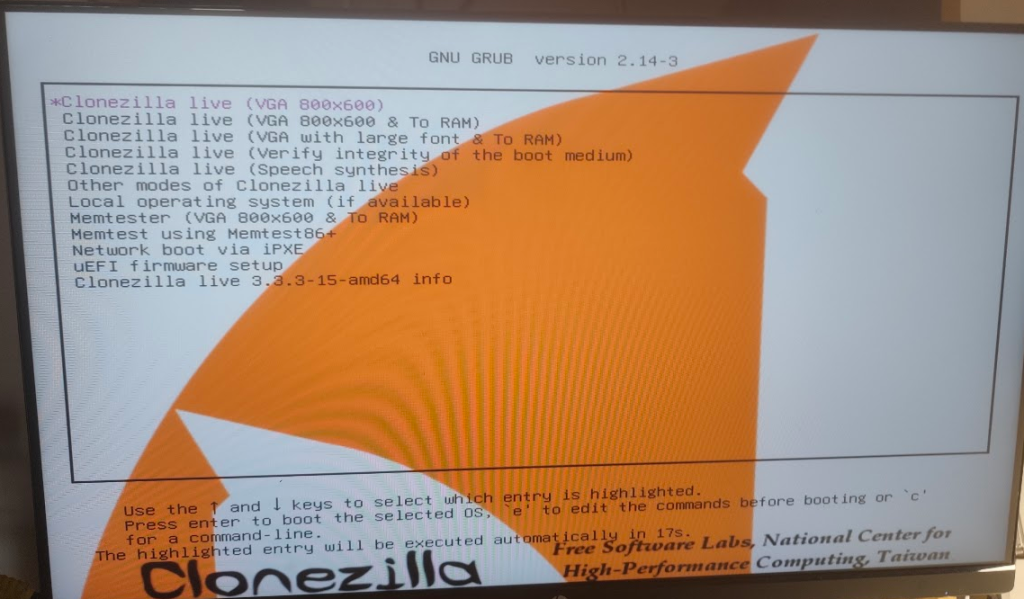
Perfecte! Estàs al menú d’arrencada de Clonezilla. La primera opció ja està seleccionada (la que té l’asterisc *).
Pas 1: Selecciona la primera opció
Simplement prem ENTER per arrencar amb Clonezilla live (VGA 800x600).
Aquesta opció és suficient per al que necessitem. El sistema es carregarà i després et demanarà:
Què passarà després:
Idioma: Et demanarà si vols ca_ES (Català), en_US.UTF-8 English o altres.
Teclat: Selecciona el teu layout de teclat (normalment Keep o Spanish si no trobes el català).
Mode de Clonezilla: Tria Start Clonezilla (mode normal).
Tipus de treball: Selecciona device-image (treballar amb imatges de discs/particions).
Muntatge: Selecciona local_dev (utilitzar dispositiu local – el teu USB Kingston).
Selecciona el disc: Aquí veuràs el teu USB Kingston (normalment /dev/sdb1).
Nom de la imatge: Posarem AMD1_Deepin_Backup.
Mode: Selecciona saveparts (guardar només les particions de Deepin).
Particions: Selecciona sda1 (EFI) i sda5 (Deepin).
Prem ENTER ara i digues-me què et surt al següent pas! 🚀
Veig que has arribat a posar el nom de la imatge, però Clonezilla et dona un error perquè no troba discs disponibles per fer el backup.
L’error diu: «No existeixen discs o no es troben discs no muntats!»
Això passa perquè Clonezilla ha detectat que estàs intentant fer un backup del disc sencer (savedisk), però les particions del teu disc estan «ocupades» o muntades.
🔧 Solució:
Pas 1: Prem INTRO per sortir
Prem la tecla Intro per tornar al menú principal.
Pas 2: Torna a iniciar Clonezilla
Ara, quan tornis al menú principal de Clonezilla, segueix aquests passos molt atents:
Idioma: Tria ca_ES o en_US
Mode: Start Clonezilla
Tipus: device-image (treballar amb imatges)
Muntatge: local_dev (utilitzar dispositiu local)
Selecciona el disc: Tria el teu USB Kingston (sdb1)
Mode de còpia: AQUÍ ÉS ON HAS DE TRIAR saveparts (NO savedisk)
savedisk = clona tot el disc físic (pot donar problemes si està muntat)
saveparts = clona només les particions que triïs (més segur)
Pas 3: Selecciona les particions correctes
Quan triïs saveparts, et mostrarà una llista de particions. Selecciona:
✅ sda1 (EFI/boot – vfat)
✅ sda5 (Deepin – ext4)
❌ NO seleccionis sda3 (Windows – ntfs)
❌ NO seleccionis sda4 (Recovery)
Així Clonezilla només farà backup de Deepin i no tindrà problemes amb Windows.
Prem Intro, torna a intentar-ho triant saveparts en lloc de savedisk, i digues-me què et surt! 🔄
Aquest text descriu tractaments professionals molt reals i efectius. De fet, és un resum molt acurat del que ofereixen les empreses especialitzades en el control de plagues de la fusta.
Tanmateix, no tots aquests mètodes serveixen per al teu cas (bigues d’una casa). Aquí tens la meva anàlisi de cadascun, perquè sàpigues què demanar i què descartar:
1. Tractament en atmosfera controlada
Què és: Es tanca la fusta en una cambra estanca i s’altera l’atmosfera (es treu l’oxigen i es posa nitrogen o CO₂) per asfixiar els insectes sense usar químics.
La meva opinió: És el millor mètode del món per a mobles antics, obres d’art o fusta de valor, perquè no deixa cap residu tòxic ni altera la fusta.
Per a les teves bigues:NO és viable. Aquest tractament requereix treure l’objecte i portar-lo a una planta especialitzada. No es pot fer in situ (a la casa) amb bigues encastades o estructurals.
2. Pulverització i gels especialitzats
Què és: Aplicar líquids o gels insecticides a la superfície o dins dels forats visibles.
La meva opinió: És el mètode típic de «fer-ho tu mateix» o per a manteniment. Funciona bé per a fusta prima (mobles, motllures) o atacs molt superficials.
Per a les teves bigues:És insuficient si la biga és gruixuda. Els líquids per pulverització només penetren uns pocs mil·límetres. Si la corcadura està a l’interior d’una biga de 20 cm de gruix, el producte no hi arribarà mai.
3. Injecció amb vàlvules de no retorn (⭐ EL MÉS RECOMANAT PER A BIGUES)
Què és: El professional fa petits forats a la biga, hi insereix unes petites vàlvules de plàstic i, amb una màquina a pressió, injecta un gel o líquid Insecticida / Protector de fusta. La vàlvula impedeix que el producte surti cap enfora, obligant-lo a penetrar profundament per les galeries dels corcs.
La meva opinió: Aquest és l’estàndard d’or i el mètode més efectiu per a bigues estructurals. Assegura que el producte arribi al cor de la fusta, on realment viuen les larves. A més, sol portar garantia (de 5 a 10 anys).
Per a les teves bigues:SÍ, aquesta és la solució que hauries de buscar si confirmes que l’atac és actiu i la fusta encara té estructura.
4. Substitució amb resines epòxiques
Què és: No és un tractament contra l’insecte, sinó una reparació estructural. Si la quera s’ha menjat la part central o un extrem de la biga i aquesta ha perdut força, es neteja la fusta podrida i s’omple el buit amb una resina epòxica d’alta resistència (de vegades reforçada amb barres d’acer o fibra de vidre).
La meva opinió: És una tecnologia excel·lent que permet salvar una biga antiga i mantenir l’estètica original sense haver de fer una obra monumental per canviar-la tota.
Per a les teves bigues:Només és necessari si la biga ja està molt debilitada. Si la biga encara és sòlida, no cal arribar a aquest punt. Recorda que, encara que es repari amb resina, la part de fusta sana que quedi s’ha de tractar igualment (amb el mètode d’injecció) per evitar que els corcs tornin.
💡 El meu consell per al teu cas:
Si has detectat quera a les bigues, el camí professional més lògic és:
Demana a una empresa que faci una inspecció (moltes ho fan gratis) per confirmar que és quera activa i avaluar si la biga ha perdut resistència.
Si la biga és estructuralment sana: Demana pressupost per a Injecció amb vàlvules de no retorn.
Si la biga està molt malmesa: Demana pressupost per a Reparació amb resines epòxiques + tractament preventiu de la fusta restant.
Evita les empreses que et proposin només «pulveritzar» una biga gruixuda, perquè estaràs tirant els diners: el producte no arribarà a l’insecte.
Tens alguna d’aquestes bigues que et faci sospitar que ha perdut força (es doblega o la fusta s’esmicola al tocar-la)?
√ Pots utilitzar el Silencio S amb WC de terra SI:
1. El teu WC té sortida horitzontal (cap a la paret), no vertical (cap al terra)
2. Tens espai suficient darrere del WC per allotjar la màquina (80-85 cm de profunditat total)
3. Estàs disposat a construir un fals envà o moble que amagui la trituradora
El teu WC té sortida horitzontal (cap a la paret), no vertical (cap al terra)
Tens espai suficient darrere del WC per allotjar la màquina (80-85 cm de profunditat total)
Estàs disposat a construir un fals envà o moble que amagui la trituradora
L’script de baix instal·la la versió de Firefox 158 o la que hi hagi a downloads. La instal·la al directori /opt, crea un enllaç simbòlic a /usr/local/bin/firefox, posar un enllaç amb la icona de Firefox al escriptori, i també el carrega al plafó d’aplicacions.
Doncs, esborrem i partim de cero. Instació a la carpeta opt/firefofox 158/. // llançament amb /usr/local/bin/firefox. // enllaç sumbolic amb la icona clasica al escriptori i registrada al plafó d’aplicacions
# 0) Neteja de totes les restes anteriors
rm -rf ~/Downloads/firefox
rm -f  ~/.local/share/applications/firefox158.desktop
sudo rm -rf /opt/firefox158
sudo rm -f  /usr/local/bin/firefox

# 1) Instal·lació neta a /opt/firefox158
cd /tmp
tar xf ~/Downloads/firefox-158.0.tar.xz          # crea /tmp/firefox
sudo mv /tmp/firefox /opt/firefox158
sudo chown -R root:root /opt/firefox158

# 2) Llançament amb /usr/local/bin/firefox
sudo ln -sf /opt/firefox158/firefox /usr/local/bin/firefox
firefox --version                                 # ha de dir "Mozilla Firefox 158"

# 3) Registre al plafó d'aplicacions + icona clàssica
cat > ~/.local/share/applications/firefox158.desktop <<'EOF'
[Desktop Entry]
Name=Firefox 158
Comment=Navegador web Firefox 158
Exec=/opt/firefox158/firefox %u
Icon=/opt/firefox158/browser/chrome/icons/default/default128.png
Terminal=false
Type=Application
Categories=Network;WebBrowser;
StartupWMClass=firefox
EOF
update-desktop-database ~/.local/share/applications

# 4) Icona (enllaç simbòlic) a l'escriptori
cp ~/.local/share/applications/firefox158.desktop ~/Desktop/firefox158.desktop
chmod +x ~/Desktop/firefox158.desktop
gio set ~/Desktop/firefox158.desktop metadata::trusted true
Seguir les instruccions de la carpeta /mnt/dropbox/office. és convenient instal·lar simultàniament amb el paquet principal idioma, ajuda, temes i provar la instal·lació
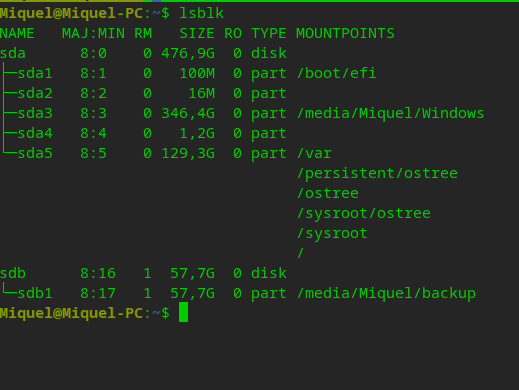
Tens un sistema dual (Deepin + Windows) en el mateix disc, amb Deepin muntat sobre una estructura OSTree (sistema atòmic/immutable) i un disc extern dedicat a còpies de seguretat.
Fem un llistat de backup mut
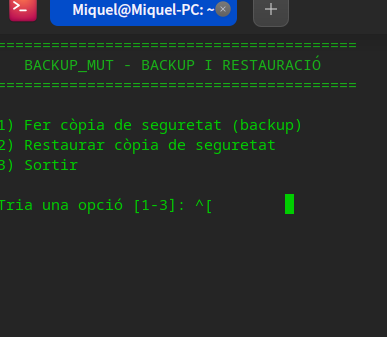
$ cat -n /usr/local/bin/backup_mut
#!/bin/bash
# Indica al sistema que aquest fitxer s'ha d'executar amb l'intèrpret Bash.

# ==========================================
# 1. CONFIGURACIÓ INICIAL I COLORS
# ==========================================

VERMELL='\033[0;31m'
VERD='\033[0;32m'
GROC='\033[1;33m'
BLAU='\033[0;34m'
NC='\033[0m'

# Opcions base de rsync; s'hi afegeixen flags segons el sistema de fitxers del destí
RSYNC_OPTS="-avh --progress"

clear

# ==========================================
# 2. FUNCIONS DE DETECCIÓ I MUNTATGE DE DISCS
# ==========================================

# disc_sistema: nom del disc físic on viu el Deepin (ex: "sda").
disc_sistema() {
    local arrel
    arrel=$(findmnt -n -o SOURCE / 2>/dev/null)
    lsblk -ndo PKNAME "$arrel" 2>/dev/null | head -n 1
}

# detecta_discos: omple els vectors amb les particions (o discs sencers amb
# sistema de fitxers propi) de tots els discs que NO siguin el del sistema.
detecta_discos() {
    local sys part tipus disc mp mida label fst

    sys=$(disc_sistema)

    DISC_NOM=(); DISC_MIDA=(); DISC_ETIQUETA=(); DISC_MUNTATGE=(); DISC_MUNTAT=()
    NUM_DISCS=0

    while read -r part tipus; do
        if [ "$tipus" == "disk" ]; then
            disc=$(basename "$part")
        else
            disc=$(lsblk -ndo PKNAME "$part" 2>/dev/null | head -n 1)
        fi

        mp=$(lsblk -ndo MOUNTPOINT "$part" 2>/dev/null | head -n 1)
        fst=$(lsblk -ndo FSTYPE "$part"    2>/dev/null | head -n 1)

        # Mai el disc físic on viu el Deepin (ni les seves particions)
        [ "$disc" == "$sys" ] && continue
        # Descarta dispositius sense sistema de fitxers útil
        case "$fst" in
            ""|swap|crypto_LUKS) continue ;;
        esac
        # Descarta punts de muntatge propis del sistema operatiu
        case "$mp" in
            /|/boot|/boot/efi|/efi) continue ;;
        esac

        mida=$(lsblk -ndo SIZE "$part"  2>/dev/null | head -n 1)
        label=$(lsblk -ndo LABEL "$part" 2>/dev/null | head -n 1)

        NUM_DISCS=$((NUM_DISCS + 1))
        DISC_NOM[NUM_DISCS]="$part"
        DISC_MIDA[NUM_DISCS]="$mida"
        DISC_ETIQUETA[NUM_DISCS]="${label:-sense etiqueta}"
        DISC_MUNTATGE[NUM_DISCS]="$mp"
        if [ -n "$mp" ]; then
            DISC_MUNTAT[NUM_DISCS]="si"
        else
            DISC_MUNTAT[NUM_DISCS]="no"
        fi
    done < <(lsblk -nlp -o NAME,TYPE 2>/dev/null | awk '$2 == "part" || $2 == "disk" {print $1, $2}')
}

# munta_disc <índex>: monta la unitat amb udisksctl si cal (no cal sudo).
munta_disc() {
    local idx="$1" mp
    [ "${DISC_MUNTAT[$idx]}" == "si" ] && return 0

    if ! command -v udisksctl >/dev/null 2>&1; then
        echo -e "${VERMELL}udisksctl no disponible. Monta el disc des del gestor de fitxers.${NC}"
        return 1
    fi

    echo -e "${BLAU}Muntant ${DISC_NOM[$idx]}...${NC}"
    udisksctl mount -b "${DISC_NOM[$idx]}" >/dev/null 2>&1
    mp=$(lsblk -ndo MOUNTPOINT "${DISC_NOM[$idx]}" 2>/dev/null | head -n 1)

    if [ -n "$mp" ]; then
        DISC_MUNTATGE[$idx]="$mp"
        DISC_MUNTAT[$idx]="si"
        echo -e "${VERD}✓ Muntat a: $mp${NC}"
        return 0
    else
        echo -e "${VERMELL}No s'ha pogut muntar ${DISC_NOM[$idx]}.${NC}"
        echo "Monta'l des del gestor de fitxers i torna-ho a provar."
        return 1
    fi
}

# mostra_discos: llistat numerat d'unitats + estat de muntatge.
mostra_discos() {
    local i estat
    if [ "$NUM_DISCS" -eq 0 ]; then
        echo -e "  ${VERMELL}(cap)${NC} No s'ha detectat cap USB ni disc extern/intern."
    else
        for i in $(seq 1 "$NUM_DISCS"); do
            if [ "${DISC_MUNTAT[$i]}" == "si" ]; then
                estat="${VERD}muntat a ${DISC_MUNTATGE[$i]}${NC}"
            else
                estat="${GROC}no muntat (es muntarà en triar-lo)${NC}"
            fi
            echo -e "  ${VERD}$i${NC}) ${DISC_ETIQUETA[$i]} ${BLAU}[${DISC_NOM[$i]}, ${DISC_MIDA[$i]}]${NC} - $estat"
        done
    fi
}

# rsync_compat <dispositiu>: adapta les opcions de rsync al sistema de fitxers:
#  - ext4/btrfs/xfs: hardlinks (-H) I permisos/propietaris (clau per a ostree).
#  - ntfs: hardlinks sí, sense permisos Linux.
#  - exfat/vfat: ni hardlinks ni permisos.
rsync_compat() {
    local fst
    fst=$(lsblk -ndo FSTYPE "$1" 2>/dev/null | head -n 1)
    case "$fst" in
        ext2|ext3|ext4|btrfs|xfs) echo " -H" ;;
        ntfs)                     echo " -H --no-perms --no-owner --no-group" ;;
        *)                        echo " --no-perms --no-owner --no-group" ;;
    esac
}

# ajusta_rsync <ruta_desti>: determina el dispositiu de destí i afegeix els
# flags adequats a RSYNC_OPTS.
ajusta_rsync() {
    local ruta="$1" i disc_desti=""
    for i in $(seq 1 "$NUM_DISCS"); do
        case "$ruta" in
            "${DISC_MUNTATGE[$i]}"*) disc_desti="${DISC_NOM[$i]}"; break ;;
        esac
    done
    RSYNC_OPTS="${RSYNC_OPTS}$(rsync_compat "$disc_desti")"
}

# ==========================================
# 3. MENÚ PRINCIPAL
# ==========================================
echo -e "${VERD}========================================${NC}"
echo -e "${VERD}   BACKUP_MUT - BACKUP I RESTAURACIÓ    ${NC}"
echo -e "${VERD}========================================${NC}"
echo ""
echo "1) Fer còpia de seguretat (backup)"
echo "2) Restaurar còpia de seguretat"
echo "3) Sortir"
echo ""

read -p "Tria una opció [1-3]: " opcio

# ==========================================
# 4. LÒGICA DE DECISIÓ (CASE)
# ==========================================
case $opcio in
    1) # --- OPCIÓ 1: FER BACKUP ---
        echo ""
        echo -e "${GROC}--- MODE BACKUP ---${NC}"

        detecta_discos
        echo ""
        echo -e "${BLAU}Unitats disponibles on guardar el backup:${NC}"
        mostra_discos
        echo ""

        # Arbre visual de tots els discs i particions del sistema
        DISC_SYS=$(disc_sistema)
        echo -e "${BLAU}🗺️  Mapa de discs del sistema (el disc '${DISC_SYS}' és el del Deepin i queda exclòs):${NC}"
        lsblk -o NAME,SIZE,TYPE,PKNAME,LABEL,MOUNTPOINT
        echo ""

        if [ "$NUM_DISCS" -eq 0 ]; then
            echo -e "${GROC}PKNAME és el disc físic 'pare'. Si tots els volums tenen el${NC}"
            echo -e "${GROC}mateix PKNAME que el sistema, són particions del mateix disc${NC}"
            echo -e "${GROC}físic i queden excloses per seguretat.${NC}"
            echo ""
        fi

        echo ""
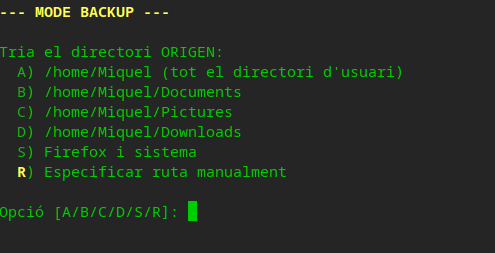
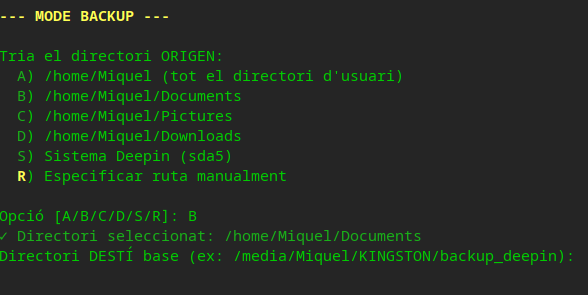
        echo "Tria el directori ORIGEN:"
        echo -e "  ${VERD}A${NC}) /home/Miquel (tot el directori d'usuari)"
        echo -e "  ${VERD}B${NC}) /home/Miquel/Documents"
        echo -e "  ${VERD}C${NC}) /home/Miquel/Pictures"
        echo -e "  ${VERD}D${NC}) /home/Miquel/Downloads"
        echo -e "  ${VERD}S${NC}) Sistema Deepin (sda5)"
        echo -e "  ${GROC}R${NC}) Especificar ruta manualment"
        echo ""
        read -p "Opció [A/B/C/D/S/R]: " opcio_dir

        case "$opcio_dir" in
            A|a)
                origen="/home/Miquel/"
                echo -e "${VERD}✓ Directori seleccionat: /home/Miquel${NC}"
                ;;
            B|b)
                origen="/home/Miquel/Documents/"
                echo -e "${VERD}✓ Directori seleccionat: /home/Miquel/Documents${NC}"
                ;;
            C|c)
                origen="/home/Miquel/Pictures/"
                echo -e "${VERD}✓ Directori seleccionat: /home/Miquel/Pictures${NC}"
                ;;
            D|d)
                origen="/home/Miquel/Downloads/"
                echo -e "${VERD}✓ Directori seleccionat: /home/Miquel/Downloads${NC}"
                ;;
            S|s)
                echo -e "${VERD}💾 BACKUP DEL SISTEMA DEEPIN (sda5)${NC}"
                echo ""

                ARREL=$(findmnt -n -o SOURCE / 2>/dev/null)
                if [ "$ARREL" != "/dev/sda5" ]; then
                    echo -e "${GROC}⚠  Atenció: La partició arrel actual és ${ARREL:-desconeguda}, no /dev/sda5.${NC}"
                    read -p "Vols fer el backup del sistema actual de totes maneres? (s/n): " confirma_sys
                    if [ "$confirma_sys" != "s" ] && [ "$confirma_sys" != "S" ]; then
                        echo "Operació cancel·lada."
                        exit 0
                    fi
                fi

                if [ "$NUM_DISCS" -eq 0 ]; then
                    echo -e "${VERMELL}Error: No s'ha trobat cap USB o disc connectat!${NC}"
                    echo "Connecta un USB i torna a intentar-ho."
                    exit 1
                elif [ "$NUM_DISCS" -eq 1 ]; then
                    if munta_disc 1; then
                        USB_PATH="${DISC_MUNTATGE[1]}/"
                        echo -e "${BLAU}Unitat detectada: ${USB_PATH}${NC}"
                    else
                        exit 1
                    fi
                else
                    echo "Tria la unitat on guardar el backup del sistema:"
                    mostra_discos
                    read -p "Opció [1-$NUM_DISCS]: " opcio_sys
                    if [[ "$opcio_sys" =~ ^[0-9]+$ ]] && [ "$opcio_sys" -ge 1 ] && [ "$opcio_sys" -le "$NUM_DISCS" ]; then
                        if munta_disc "$opcio_sys"; then
                            USB_PATH="${DISC_MUNTATGE[$opcio_sys]}/"
                        else
                            exit 1
                        fi
                    else
                        echo -e "${VERMELL}Opció no vàlida.${NC}"
                        exit 1
                    fi
                fi
                echo ""

                origen="/"
                # Carpeta FIXA: el backup del sistema s'actualitza incrementalment
                desti="${USB_PATH}deepin_system_backup"

                echo "Origen: $origen"
                echo "Destí:  $desti"
                echo ""

                mkdir -p "$desti"

                if [ "$EUID" -ne 0 ]; then
                    echo -e "${GROC}⚠  Per copiar fitxers del sistema es necessiten permisos d'administrador.${NC}"
                    echo -e "${BLAU}Introdueix la teva contrasenya quan se't demani.${NC}"
                    RSYNC_SYS="sudo rsync"
                else
                    RSYNC_SYS="rsync"
                fi

                ajusta_rsync "$desti"

                echo -e "${VERD}Iniciant còpia de seguretat del sistema...${NC}"
                echo -e "${GROC}Aquest procés pot trigar força temps...${NC}"
                $RSYNC_SYS $RSYNC_OPTS \
                    --exclude='/proc' \
                    --exclude='/sys' \
                    --exclude='/dev' \
                    --exclude='/run' \
                    --exclude='/tmp' \
                    --exclude='/mnt' \
                    --exclude='/media' \
                    --exclude='/lost+found' \
                    "$origen" "$desti/"

                echo -e "${BLAU}Guardant informació del backup...${NC}"
                if [ "$RSYNC_SYS" == "sudo rsync" ]; then ESCRIU="sudo tee"; else ESCRIU="tee"; fi
                echo "ORIGEN=$origen" | $ESCRIU "${desti}/backup_info" > /dev/null
                {
                    echo "DATA=$(date +%Y-%m-%d_%H:%M:%S)"
                    echo "TIPUS=deepin_system_backup"
                    echo "USB=${USB_PATH}"
                    echo "PARTICIO=${ARREL:-/dev/sda5}"
                } | $ESCRIU -a "${desti}/backup_info" > /dev/null

                echo -e "${VERD}✅ Backup del sistema Deepin completat!${NC}"
                echo "Metadades guardades a: ${desti}/backup_info"
                echo ""
                exit 0
                ;;
            *)
                read -p "Directori ORIGEN (ex: /home/Miquel/Pictures/Pict): " origen
                ;;
        esac

        # --- Selecció del DESTÍ (sempre a partir del llistat) ---
        if [ "$NUM_DISCS" -eq 0 ]; then
            echo -e "${VERMELL}Error: no hi ha cap unitat disponible on guardar el backup.${NC}"
            echo "Connecta un USB o disc extern i torna-ho a provar."
            exit 1
        elif [ "$NUM_DISCS" -eq 1 ]; then
            if munta_disc 1; then
                desti_base="${DISC_MUNTATGE[1]}/backup_deepin"
                echo -e "${VERD}✓ Destí seleccionat: $desti_base${NC}"
            else
                exit 1
            fi
        else
            echo ""
            read -p "Tria la unitat de DESTÍ del backup (mira el llistat de dalt): " opcio_desti
            if [[ "$opcio_desti" =~ ^[0-9]+$ ]] && [ "$opcio_desti" -ge 1 ] && [ "$opcio_desti" -le "$NUM_DISCS" ]; then
                if munta_disc "$opcio_desti"; then
                    desti_base="${DISC_MUNTATGE[$opcio_desti]}/backup_deepin"
                    echo -e "${VERD}✓ Destí seleccionat: $desti_base${NC}"
                else
                    exit 1
                fi
            else
                echo -e "${VERMELL}Opció no vàlida.${NC}"
                exit 1
            fi
        fi

        if [ ! -d "$origen" ]; then
            echo -e "${VERMELL}Error: El directori origen '$origen' no existeix.${NC}"
            exit 1
        fi

        nom_carpeta=$(basename "$origen")
        if [[ "$origen" == /home/$USER* ]]; then
            # Dades personals: una carpeta nova amb data a cada execució
            desti="${desti_base}/${nom_carpeta}_$(date +%Y%m%d_%H%M)"
        else
            # Sistema (Roota, etc.): carpeta fixa actualitzada incrementalment
            desti="${desti_base}/${nom_carpeta}"
        fi

        [[ "$origen" != */ ]] && origen="${origen}/"
        rsync_desti="${desti}/"

        # SEGURETAT: mai copiar "/" sense exclusions (usa l'opció S)
        if [ "$origen" == "/" ]; then
            echo -e "${VERMELL}Error: per copiar tot el sistema usa l'opció S.${NC}"
            exit 1
        fi
        # SEGURETAT: el destí mai pot ser dins de l'origen (recursió infinita)
        case "$desti" in
            "$origen"*)
                echo -e "${VERMELL}Error: el destí ('$desti') és dins de l'origen ('$origen').${NC}"
                echo "Això provocaria una còpia infinita. Operació cancel·lada."
                exit 1
                ;;
        esac

        echo ""
        echo -e "${BLAU}📋 Resum del backup:${NC}"
        echo -e "   Origen: ${VERD}$origen${NC}"
        echo -e "   Destí:  ${VERD}$rsync_desti${NC}"
        echo ""
        read -p "Vols continuar? (s/n): " confirma_backup

        if [ "$confirma_backup" != "s" ] && [ "$confirma_backup" != "S" ]; then
            echo -e "${GROC}⚠  Operació cancel·lada. No s'ha copiat res.${NC}"
            exit 0
        fi

        mkdir -p "$desti"

        echo ""
        echo -e "${VERD}Iniciant còpia de seguretat...${NC}"

        ajusta_rsync "$desti"

        if [ "$EUID" -ne 0 ] && [[ "$origen" != /home/$USER* ]]; then
            RSYNC_CMD="sudo rsync"
            echo -e "${GROC}⚠  L'origen conté fitxers de sistema: cal contrasenya d'administrador.${NC}"
        else
            RSYNC_CMD="rsync"
        fi

        $RSYNC_CMD $RSYNC_OPTS "$origen" "$rsync_desti"

        echo -e "${BLAU}Guardant informació del backup...${NC}"
        if [ "$RSYNC_CMD" == "sudo rsync" ]; then ESCRIU="sudo tee"; else ESCRIU="tee"; fi
        echo "ORIGEN=$origen" | $ESCRIU "${desti}/backup_info" > /dev/null
        echo "DATA=$(date +%Y-%m-%d_%H:%M:%S)" | $ESCRIU -a "${desti}/backup_info" > /dev/null
        echo -e "${VERD}✅ Metadades guardades a ${desti}/backup_info${NC}"
        ;;

    2) # --- OPCIÓ 2: RESTAURAR BACKUP ---
        echo ""
        echo -e "${GROC}--- MODE RESTAURACIÓ ---${NC}"

        detecta_discos
        echo ""
        echo -e "${BLAU}Unitats disponibles on cercar backups:${NC}"
        mostra_discos
        echo ""

        if [ "$NUM_DISCS" -eq 0 ]; then
            echo -e "${VERMELL}Error: no hi ha cap unitat on cercar backups.${NC}"
            echo "Connecta un USB o disc extern i torna-ho a provar."
            exit 1
        elif [ "$NUM_DISCS" -eq 1 ]; then
            if munta_disc 1; then
                USB_PATH="${DISC_MUNTATGE[1]}/"
                echo -e "${VERD}✓ Unitat seleccionada: ${USB_PATH}${NC}"
            else
                exit 1
            fi
        else
            read -p "Tria la unitat on cercar el backup (mira el llistat de dalt): " opcio_usb
            if [[ "$opcio_usb" =~ ^[0-9]+$ ]] && [ "$opcio_usb" -ge 1 ] && [ "$opcio_usb" -le "$NUM_DISCS" ]; then
                if munta_disc "$opcio_usb"; then
                    USB_PATH="${DISC_MUNTATGE[$opcio_usb]}/"
                    echo -e "${VERD}✓ Unitat seleccionada: ${USB_PATH}${NC}"
                else
                    exit 1
                fi
            else
                echo -e "${VERMELL}Opció no vàlida.${NC}"
                exit 1
            fi
        fi

        # Cerca els backups de veritat: carpetes que contenen "backup_info"
        echo -e "${BLAU}Cercant backups disponibles...${NC}"
        mapfile -t backups < <(find "$USB_PATH" -maxdepth 4 -type f -name "backup_info" 2>/dev/null | sort -r)

        if [ ${#backups[@]} -eq 0 ]; then
            echo -e "${VERMELL}No s'han trobat backups a ${USB_PATH}.${NC}"
            exit 1
        fi

        echo ""
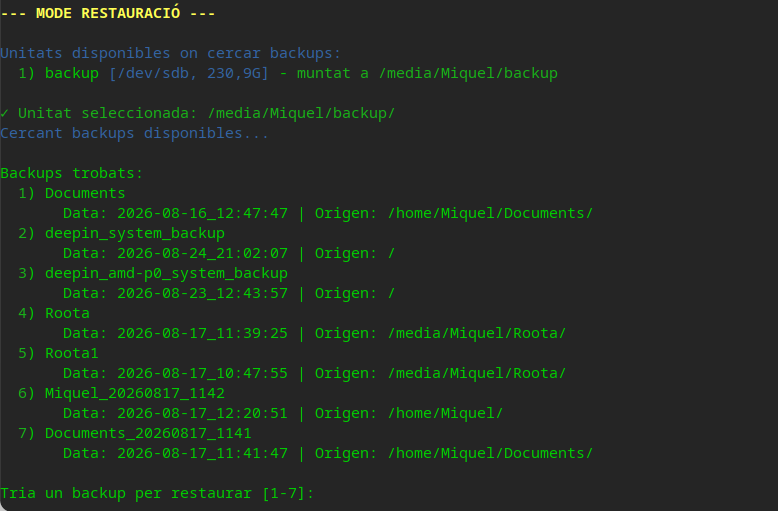
        echo "Backups trobats:"
        for i in "${!backups[@]}"; do
            info="${backups[$i]}"
            carpeta=$(dirname "$info")
            nom_backup=$(basename "$carpeta")
            data_backup=$(grep "^DATA=" "$info" | cut -d'=' -f2-)
            origen_b=$(grep "^ORIGEN=" "$info" | cut -d'=' -f2-)
            echo -e "  ${VERD}$((i+1))${NC}) $nom_backup"
            echo -e "       Data: $data_backup | Origen: $origen_b"
        done
        echo ""

        if [ ${#backups[@]} -eq 1 ]; then
            idx=0
            echo -e "${VERD}✓ Backup trobat: $(basename "$(dirname "${backups[0]}")")${NC}"
        else
            read -p "Tria un backup per restaurar [1-${#backups[@]}]: " eleccio
            if [[ "$eleccio" =~ ^[0-9]+$ ]] && [ "$eleccio" -ge 1 ] && [ "$eleccio" -le "${#backups[@]}" ]; then
                idx=$((eleccio-1))
            else
                echo -e "${VERMELL}Opció no vàlida.${NC}"
                exit 1
            fi
        fi

        info="${backups[$idx]}"
        backup_seleccionat=$(dirname "$info")
        origen_original=$(grep "^ORIGEN=" "$info" | cut -d'=' -f2-)
        data_backup=$(grep "^DATA=" "$info" | cut -d'=' -f2-)

        echo ""
        echo -e "${BLAU}Backup seleccionat: ${VERD}$backup_seleccionat${NC}"
        echo ""
        echo -e "${BLAU}📋 Informació del backup:${NC}"
        echo -e "   Origen original: ${VERD}$origen_original${NC}"
        echo -e "   Data del backup: ${VERD}$data_backup${NC}"
        echo ""
        echo -e "${BLAU}🔄 Restauració automàtica:${NC}"
        echo -e "   Des de: ${VERD}$backup_seleccionat${NC}"
        echo -e "   Cap a:  ${VERD}$origen_original${NC}"
        echo ""

        read -p "Vols continuar? (s/n): " confirma

        if [ "$confirma" != "s" ] && [ "$confirma" != "S" ]; then
            echo "Operació cancel·lada."
            exit 0
        fi

        echo ""
        echo -e "${VERD}Iniciant restauració...${NC}"

        if [ "$EUID" -ne 0 ] && [[ "$origen_original" != /home/$USER* ]]; then
            RSYNC_CMD="sudo rsync"
            echo -e "${GROC}⚠  La restauració toca fitxers de sistema: cal contrasenya d'administrador.${NC}"
        else
            RSYNC_CMD="rsync"
        fi
        $RSYNC_CMD $RSYNC_OPTS --exclude='backup_info' "$backup_seleccionat/" "$origen_original"

        echo ""
        echo -e "${VERD}✅ Restauració completada!${NC}"
        ;;

    3) # --- OPCIÓ 3: SORTIR ---
        echo "Adéu!"
        exit 0
        ;;

    *) # --- OPCIÓ NO VÀLIDA ---
        echo -e "${VERMELL}Opció no vàlida.${NC}"
        exit 1
        ;;
esac

echo ""
echo -e "${VERD}✅ Operació finalitzada!${NC}"
versió:17-8-2026
es salva amb Visual Code al escriptori -> backup_mut.txt abans de moure’l al seu lloc defintiu: /usr/local/bin/backup_mut
Instal·la el GIMP (ara que ja tens el repositori afegit)
flatpak install flathub org.gimp.GIMP
AppServ (de windows)
Amb molt de gust! 😊 Et deixo el text preparat perquè el puguis copiar i enganxar directament a una entrada de WordPress. He procurat que tingui un format de documentació, com una guia de consulta.
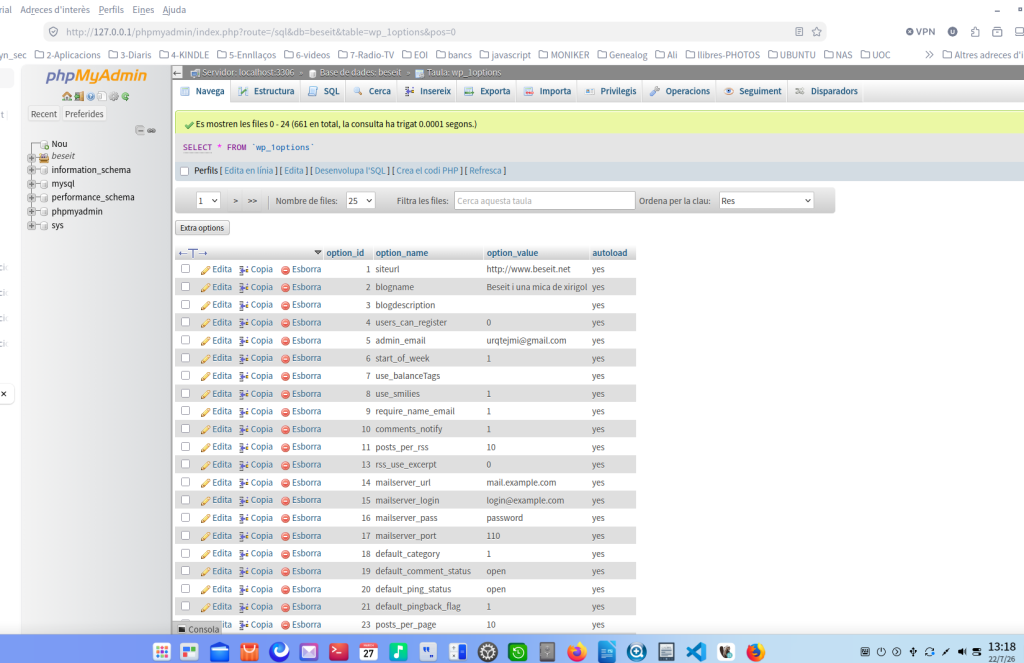
Instal·lació d’un entorn de desenvolupament LAMP a Deepin 25
Després d’instal·lar Apache, PHP, MariaDB i phpMyAdmin a Deepin 25, és útil saber on es troba cada component del sistema.
A diferència de Windows (AppServ, XAMPP, WAMP…), a Linux cada servei es guarda en el directori estàndard del sistema.
Equivalència amb AppServ
Component
AppServ (Windows)
Deepin 25
Servidor Web (Apache)
C:\AppServ\Apache24\
/etc/apache2/
Carpeta Web (www)
C:\AppServ\www\
/var/www/html/
PHP
C:\AppServ\php\
/usr/bin/php + /etc/php/8.4/
MariaDB
C:\AppServ\MySQL\
/var/lib/mysql/
phpMyAdmin
C:\AppServ\www\phpMyAdmin\
/usr/share/phpmyadmin/
Configuració phpMyAdmin
dins del programa
/etc/phpmyadmin/
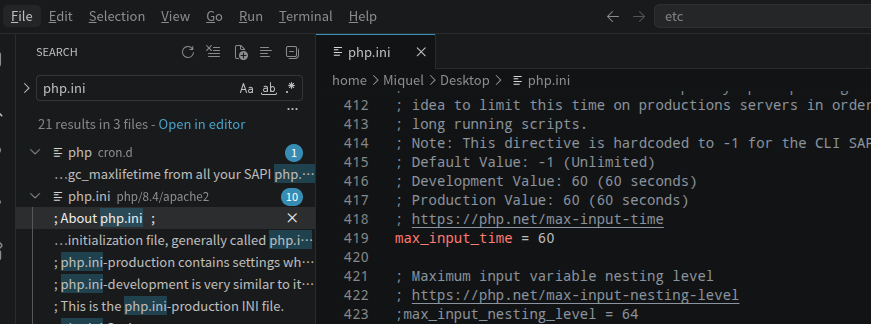
ls -lh /etc/php/8.4/apache2/php*.ini
Miquel@Miquel-PC:~$ ls -lh /etc/php/8.4/apache2/php*.ini -rw-r–r– 1 root root 68K de jul. 21 20:15 /etc/php/8.4/apache2/php.ini -rw-r–r– 1 root root 68K de jul. 22 12:01 /etc/php/8.4/apache2/php_saved.ini Miquel@Miquel-PC:~$
D’aquesta manera podem accedir als projectes mitjançant:
http://localhost/polidic/
http://localhost/wordpress/
8. Directoris més importants
Directori
Funció
/etc/apache2/
Configuració d’Apache
/var/www/html/
Carpeta web principal
/usr/bin/php
Executable PHP
/etc/php/8.4/
Configuració de PHP
/var/lib/mysql/
Bases de dades MariaDB
/usr/share/phpmyadmin/
Programa phpMyAdmin
/etc/phpmyadmin/
Configuració phpMyAdmin
/var/log/apache2/
Registres d’Apache
Conclusions
Deepin (igual que Debian i Ubuntu) distribueix cada component del servidor en el seu directori corresponent. Això pot semblar menys intuïtiu que AppServ o XAMPP, però ofereix molts avantatges:
configuració més clara i modular;
actualitzacions independents de cada component;
més estabilitat i seguretat;
estructura estàndard compartida per la majoria de distribucions Linux.
Un cop coneguda aquesta organització, administrar un servidor LAMP resulta tan senzill com treballar amb AppServ a Windows, amb l’avantatge d’utilitzar l’estructura estàndard de Linux.
Espero que aquesta guia et sigui útil. Ha estat un plaer ajudar-te a deixar el teu Deepin preparat com a entorn de desenvolupament. Bon treball amb Polidic! 🚀
D’aquesta manera podràs accedir-hi amb una URL com http://localhost/polidic/, molt semblant al que feies amb AppServ.
Quan vulguis, també et puc ajudar a configurar VirtualHosts perquè puguis obrir els teus projectes amb adreces encara més còmodes, per exemple:
http://polidic.local
http://wordpress.local
És una configuració molt pràctica per treballar en desenvolupament i és la que acostumen a fer servir molts desenvolupadors Linux.
Directament, no es pot instal·lar AppServ de manera nativa a Deepin (ni a cap altra distribució Linux moderna). Tot i que algunes fonts antigues esmenten un suport teòric per a Linux, els instal·ladors actuals d’AppServ són fitxers .exe dissenyats exclusivament per a l’entorn Windows [[44]].
No et preocupis, però: com que Deepin està basat en Debian, tens alternatives molt millors, més segures i totalment integrades per aconseguir exactament el mateix resultat (un servidor web amb Apache, PHP, base de dades i phpMyAdmin).
Aquí tens les millors opcions per al teu sistema:
1. Entorn LAMP natiu (Opció més recomanada)
És l’estàndard de la indústria en entorns Linux. En lloc d’un instal·lador de tercers, utilitzes els paquets oficials de Deepin, la qual cosa garanteix major estabilitat i actualitzacions de seguretat automàtiques. Obre la terminal i executa:
Actualitza la llista de paquets:
sudo apt update
Instal·la el servidor web Apache:
sudo apt install apache2
Per comprovar si Apache està instal·lat a Deepin i on es troba, executa aquestes comandes a la terminal:
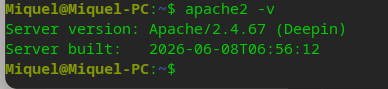
1. Comprovar si Apache està instal·lat
apache2 -v
o
dpkg -l | grep apache2
Si està instal·lat, veuràs la versió. Si no, dirà que no es troba la ordre.
Això et dirà on estan els fitxers web (normalment /var/www/html).
5. Comprovar si el port 80 està escoltant
sudo netstat -tlnp | grep :80
o
sudo ss -tlnp | grep :80
Resum ràpid: Executa apache2 -v per saber si està instal·lat i sudo systemctl status apache2 per saber si està funcionant. Si vols veure la pàgina per defecte, ves a http://localhost al navegador.
Instal·la el servidor de base de dades (MariaDB, el substitut directe i compatible de MySQL a Debian/Deepin):
sudo apt install mariadb-server
Instal·la PHP i els mòduls necessaris per connectar amb la base de dades:
sudo apt install php libapache2-mod-php php-mysql
(Opcional) Instal·la phpMyAdmin per gestionar les bases de dades des del navegador:
sudo apt install phpmyadmin
Nota: Durant la instal·lació, quan et pregunti, prem la barra espaiadora per seleccionar apache2 i després Enter. També et demanarà configurar una contrasenya per a l’administrador de la base de dades.
Un cop finalitzat, pots comprovar que tot funciona obrint el navegador i visitant http://localhost. Els teus fitxers web aniran a la carpeta /var/www/html/.
2. XAMPP per a Linux (Alternativa «tot en un»)
Si prefereixes una experiència més semblant a la d’AppServ (un sol paquet que instal·la tot de cop), XAMPP ofereix una versió oficial per a Linux. El pots descarregar des del lloc web d’Apache Friends i executar l’instal·lador .run des de la terminal. Tot i això, la comunitat de desenvolupament sol recomanar l’opció LAMP nativa, ja que XAMPP a vegades pot donar problemes de permisos o no rebre actualitzacions tan àgils com el gestor de paquets apt.
3. Docker (Per a entorns aïllats)
Com a estudiant de ciències de la computació, és molt probable que en el futur valoris tenir entorns aïllats. Pots fer servir Docker per desplegar un contenidor LAMP amb una sola ordre, sense instal·lar res directament al teu sistema operatiu Deepin, mantenint-lo net i sense conflictes entre projectes.
Resum: Descarta AppServ per a Linux. La instal·lació nativa de LAMP mitjançant la terminal de Deepin és el camí més ràpid, professional i lliure de problemes de permisos a llarg termini. Si necessites ajuda per configurar qualsevol d’aquests passos, no dubtis a dir-m’ho!
Tornar a muntar amb udisksctl: udisksctl mount -b /dev/sda6
Verificar: lsblk -f
Trobar les unitats instal·lades a Deepin
Segueix aquests passos:
lsblk
Si prefereixes una llista més simple de carpetes, també pots provar:
ls -la /media/admin/
o
ls -la /run/media/admin/
2. Copiar la carpeta
Un cop sàpigues el nom exacte de la carpeta del Kingston (per exemple, diguem que es diu KINGSTON), la comanda per copiar la carpeta Miquel sencera, mantenint tots els permisos i dates originals, serà així:
sudo cp -a /media/admin/KINGSTON/backup_deepin/Miquel /home/
Pas final i definitiu: Corregir els permisos
Com que vam veure abans que la carpeta nova havia quedat amb propietari admin, ara hem de dir-li al sistema que aquesta carpeta li pertany realment a l’usuari Miquel. Si no ho fem, quan intentis entrar amb l’usuari Miquel, l’escriptori Deepin podria donar errors o no carregar bé.
Executa aquestes dues comandes, una darrere l’altra:
1. Donar la propietat a l’usuari i grup Miquel (de forma recursiva, a tot el que hi ha dins):
sudo chown -R Miquel:Miquel /home/Miquel
2. Assegurar que la carpeta principal tingui els permisos de seguretat correctes (només el propietari hi pot entrar):
sudo chmod 700 /home/Miquel
3. Comprovació final:
ls -la /home/
Un cop vegis això, ja ho tens! Pots tancar la sessió de l’admin i iniciar sessió amb l’usuari Miquel. Hauria de ser exactament com ho tenies abans, amb totes les teves configuracions, documents i el Firefox al seu lloc.
Fes aquests passos i confirma’m que la línia ja surt correcta. Estem a la recta final!
Llistat de 60 estris Comandes de Linux
15 Comandes per accedir a fitxers
pwd: Mostrar la ubicació del directori on actualment estem ubicats.
ls: Mostrar la llista de fitxers i directoris continguts dins un directori especificat.
mv: Moure fitxers o directoris. I, fins a canviar-li el nom si calgués.
rm: Eliminar fitxers o directoris. (sudo rm /etc/default/grubç)
rmdir: Eliminar un únic directori, sempre que estigui buit.
cat: Mostrar el contingut de qualsevol tipus de fitxer a la pantalla.
head: Mostra les primeres línies d’un fitxer, especificant el nombre de línies a mostrar.
tail: Mostra les darreres línies d’un fitxer, especificant el nombre de línies a mostrar.
less: Cerca dins del contingut d’un fitxer de forma interactiva.
more: Cerca dins del contingut d’un fitxer forma interactiva.
grep: Buscar i visualitzar cadenes de caràcters en fitxers o en resultats d’ordres.
11 Comandes per administrar el Sistema Operatiu
uname: Mostrar informació sobre el SO, incloent el Kernel carregat en aquell moment.
df: Mostrar informació sobre el SA, les particions i l’ús de l’espai del disc actual.
free: Mostrar informació variada sobre la utilització de la memòria del sistema operatiu gestionat.
top: Mostrar els processos en execució, més informació sobre el CPU, la Memòria RAM i més.
htop: Similar a l’ordre top, però amb una interfície visual CLI renovada, millorada i interactiva.
ps: Mostrar els processos en execució al SO de forma detallada i no interactiva.
kill: Ieliminar processos en execució, mitjançant el nombre de processos (PID) assignat.
shutdown: Gestionar el SO per realitzar accions, com ara: Apagar-lo, Reiniciar-lo, i Aturar-lo.
reboot: Una versió nova i millorada dl’ordre shutdown, amb més opcions disponibles.
uptime: Visualitzar quant de temps ha estat funcionant el SO des de la darrera arrencada.
last: Mostra una llista d’inicis de sessió (d’usuaris) recents al sistema operatiu.
10 Ordres per gestionar informació d’elements i dispositius de HW
lsblk: Mostra informació sobre tots els dispositius demmagatzematge disponibles.
fdisk: Gestionar (crea, elimina i modifica) particions sobre els dispositius disponibles.
mount: Muntar (conecta) un sistema de fitxers sobre el directori d’un dispositiu existent.
umount: Desmuntar (desconnecta) un sistema de fitxers gestionat amb l’ordre umount.
hdparm: Administrar els paràmetres de maquinari dels dispositius de disc disponibles.
lshw: Veure la informació del HW del SO, inclosa la informació sobre els dispositius actuals.
lsusb: Veure informació específica sobre els dispositius USB actuals al SO.
lspci: Mostrar informació específica sobre els dispositius PCI actuals al SO.
lscpu: Mostrar informació específica sobre el CPU utilitzat al SO i la seva arquitectura.
dmesg: Mostrar informació interna gestionada pel Kernel, incloent-hi l’associada al HW.
14 Comandes per gestionar la informació d’elements i processos de xarxa
ip: Gestionar tota la informació associada a les interfícies de xarxa, en SO moderns.
ifconfig: Gestionar tota la informació associada a les interfícies de xarxa a SO antics.
iwconfig: Gestionar la informació associada a les interfícies sense fil d’un sistema operatiu.
nmcli: Gestionar la informació de les interfícies de xarxa via NetworkManager.
wpa_cli: Gestionar la informació de les interfícies de xarxa sense fils via WPASupplicant.
ping: Verificar la connexió actual cap a altres amfitrions de la xarxa mitjançant el protocol ICMP.
route: Gestionar la taula d’encaminament IP per establir rutes estàtiques cap a host i xarxes.
traceroute: Inrutar paquets de dades dun sistema a un altre host a través duna xarxa.
nslookup: Comprovar la informació de DNS sobre altres hosts, de manera interactiva.
dig: Consulteu servidors de noms DNS per solucionar problemes de DNS.
netstat: Veure la informació sobre les connexions de xarxa actualment actives al sistema, i més.
iptables: Gestionar les taules de regles de filtratge de paquets IPv4 i IPv6 del nucli Linux.
resolvctl: Gestionar noms de domini, adreces IPv4 /IPv6 i registres de recursos DNS.
mii-tool: Gestionar l’estat de la unitat d’interfície independent de mitjans (MII) d’una interfície de xarxa per negociar automàticament la velocitat de lenllaç i la configuració dúplex.
10 Comandes per gestionar els processos en execució i la informació relacionada
fg: Activar en un procés determinat la seva execució en primer pla (foreground).
bg: Activar en un procés determinat la seva execució en segon pla (background).
pstree: Mostrar la llista de processos en forma d’arbre mostrant les relacions entre ells.
nice: Establir la prioritat dels processos en execució en un SO.
renice: Canviar la prioritat dels processos, establertes amb l’ordre nice.
nohup: Executar un procés en segon pla (background) sense veure’s afectat per la senyal HUP.
disown: Dconnecteu els processos que s’executen en segon pla i el terminal que els executa.
fork: Crear processos (fills) a partir de la duplicació de la trucada d’un altre procés (pare).
pidfd_open: Facilitar la obtenció dun descriptor de fitxer que es refereixi a un procés.
clone:Ggenerar processos (fills) d’una forma similar a la usada amb l’ordre fork, però amb la diferència que, aquestes trucades al sistema brinden un control més precís sobre el desitjat.
Fins aquí, els nostres 60 Comandes de Linux idonis per conèixer, aprendre i utilitzar per aquest any 2023. No obstant això, en cas de desitjar saber més sobre cadascun daquests, simplement sha de fer clic sobre el nom de cada ordre. I si no, per a aquests i altres més, es pot explorar directament la secció oficial a les Manpages de Debian GNU/Linux, la qual té diverses documentacions en diferents idiomes.